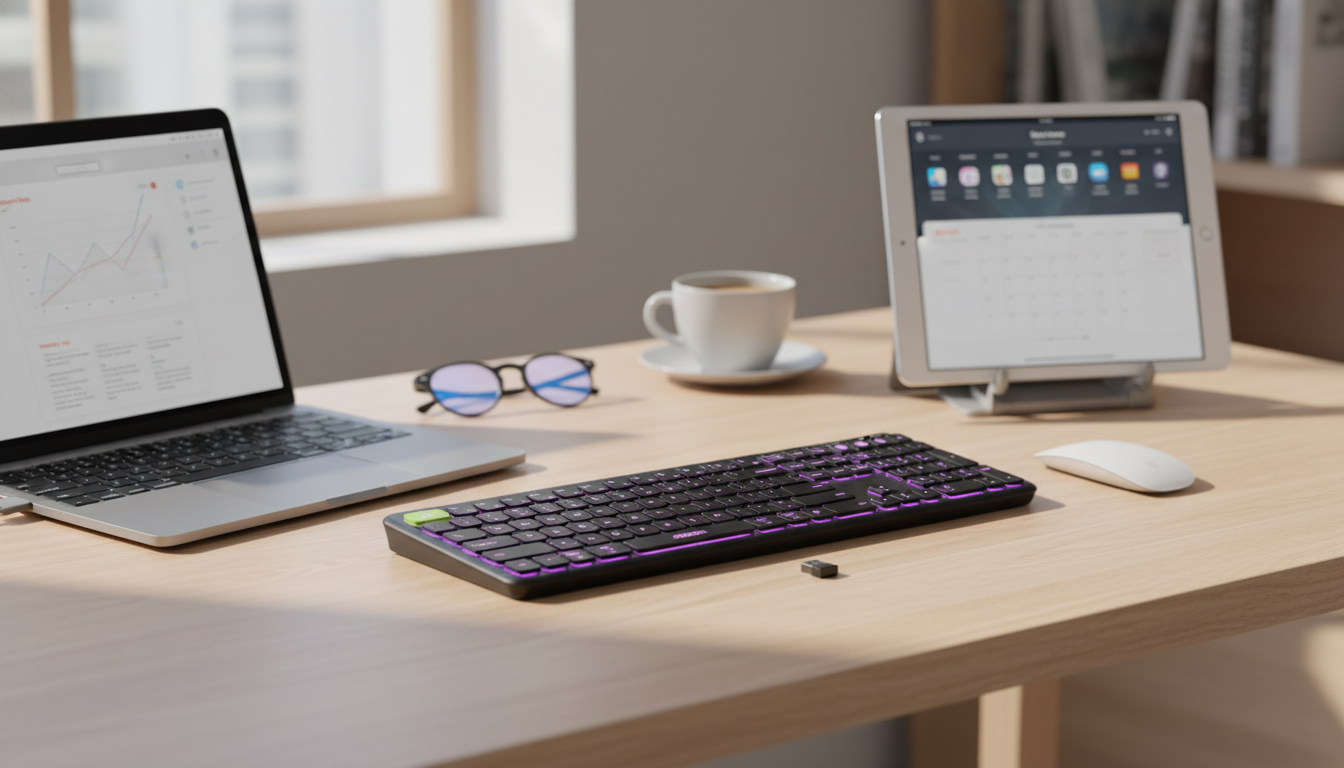
A compact wireless keyboard can make an iPad, MacBook, or iPhone feel far more productive—especially in low light. The right balance of portability, reliable Bluetooth pairing, and a comfortable layout helps turn quick messages into longer writing sessions without constantly reaching up to the screen. Below is a practical guide to what matters for daily use, including backlight control, setup tips on Apple devices, and simple habits that keep the keyboard working smoothly over time.
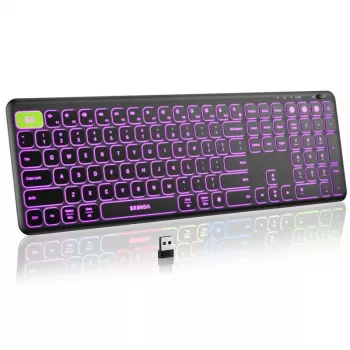
If your routine includes note-taking in meetings, editing documents on a tablet, or writing from a couch setup, a slim Bluetooth keyboard can be the difference between “possible” and “pleasant.” For a quick look at the in-stock option, visit Wireless Bluetooth Keyboard with 7-Color Backlight for Apple Devices.
Daily usability often comes down to small things: whether the keyboard wakes quickly, whether keys are easy to find in low light, and whether typing noise is low enough for shared spaces. A compact layout can also make it easier to keep your wrists relaxed when you’re working on a café table or airplane tray.
This type of Bluetooth keyboard is a strong match for iPad, iPhone, and Mac computers with Bluetooth enabled. For the smoothest connection behavior, keep iPadOS/iOS/macOS updated, and remember that keyboard shortcuts can behave slightly differently depending on the OS and app.
| Item | What to look for | Why it matters |
|---|---|---|
| Bluetooth support | Bluetooth enabled on iPhone/iPad/Mac | Required for pairing and stable connection |
| Operating system | iPadOS / iOS / macOS updated | Improves device discovery and reduces dropouts |
| Use setting | Desk, couch, travel, classroom | Determines ideal size, tilt angle, and backlight needs |
| Backlight preference | 7-color modes and brightness control | Helps typing accuracy in low light |
| Charging/Power | Know the charging method and routine | Avoids downtime during work or study |
Backlighting is most useful when it reduces visual effort. If you find yourself turning up your iPad or MacBook brightness just to see the keys, shifting some of that illumination to the keyboard can feel more comfortable—especially for quick edits at night. As a habit, treat backlight brightness like screen brightness: raise it when needed, then dial it down once your eyes adjust.
Apple’s Bluetooth pairing flow is straightforward, but initial discovery can be sensitive to distance and interference. For official step-by-step guidance, Apple Support has dedicated instructions for connecting Bluetooth devices to iPhone and iPad and connecting a Bluetooth device with a Mac. If you frequently use other Bluetooth gear (like headphones), powering them off during first pairing can speed things up.
Yes, as long as the iPad, iPhone, or Mac has Bluetooth enabled and you pair it through Bluetooth settings. Most Apple devices support Bluetooth keyboards, though shortcut behavior can vary by iPadOS/iOS/macOS and by app.
Brighter lighting and always-on backlight modes typically use more power. To extend time between charges, lower brightness, use a steady single color, or turn the backlight off during daytime use.
Update iOS/iPadOS/macOS, then forget the keyboard in Bluetooth settings and pair again. Also reduce nearby Bluetooth interference and keep the keyboard closer to the device, especially during initial reconnection.








Leave a comment