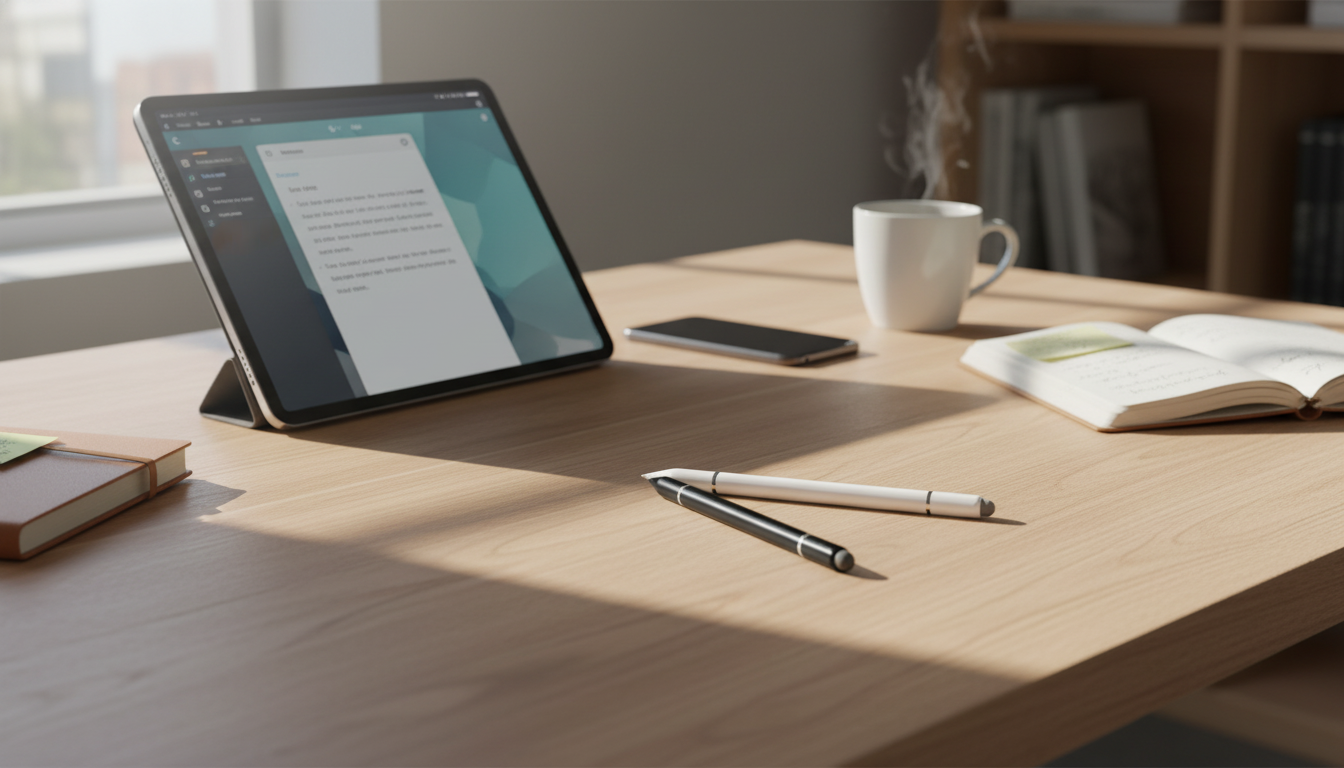
A universal stylus is a simple upgrade for scrolling, tapping, handwriting, and quick sketches—especially on larger screens like iPad. It’s a practical way to add precision without changing how you use your device. Below is what to expect from a universal stylus pen, how it differs from device-specific options, and how to get cleaner lines and better control on iPad Pro, iPad Air, iPad mini, iPhone, and many other tablets.
A universal stylus is built to work across many touchscreens without pairing, making it a convenient option for households with multiple devices. In most cases, it interacts with the display the same way your finger does—just with a finer point—so taps, swipes, and basic drawing feel more controlled.
What it typically does not include are advanced features commonly found on active, device-specific pens. Unless a product explicitly lists them, don’t expect pressure sensitivity, tilt shading, or palm rejection. Instead, a universal stylus is best for everyday navigation, light note-taking, and casual sketching—especially when a fingertip feels too imprecise.
Universal styluses shine in “daily-driver” tasks where accuracy matters more than specialized drawing features. They’re helpful for quick reminders, marking up screenshots, annotating PDFs in compatible apps, and selecting tiny interface elements that are easy to miss with a finger.
They can also improve comfort and accessibility. For users who dislike repetitive tapping or have limited dexterity, holding a stylus can feel more natural than reaching and tapping the screen directly.
| Task | Why a Stylus Helps | Tip for Better Results |
|---|---|---|
| Text editing and cursor placement | More precise than a fingertip on dense text | Zoom in and tap-hold for fine cursor placement |
| Tapping small icons/buttons | Reduces mis-taps on compact interfaces | Use the tip at a slight angle for control |
| Handwritten checklists | Cleaner strokes than finger scribbles | Slow down slightly for smoother lines |
| Annotating screenshots/PDFs | Easier to circle, underline, and point | Use high-contrast colors for clarity |
| Casual sketching | Improves line placement and symmetry | Stabilize your hand by resting your wrist lightly nearby (if the screen allows) |
For iPhone, the biggest win is accuracy on small UI elements—like editing a single character in a text field or tapping a tiny “X” on a modal. For iPad, the advantage is comfort over longer sessions: notes, reading, planning, and quick edits become less “finger-forward” and more pen-like.
Most iPads and iPhones use capacitive touchscreens, and universal styluses are designed for that same standard used across many Android and Windows tablets. That means a single stylus can often move between devices with no setup, no Bluetooth pairing, and no charging requirements (depending on the design).
Two common variables can change how a stylus feels:
When using Apple’s built-in tools, Markup and Notes are easy places to start for writing and annotation. Apple’s guides can help you find the relevant tools quickly: Apple Support: Use Markup on iPhone, iPad, and iPod touch and Apple Support: Take notes in Notes on iPad.
It also helps to remember that most touchscreens are designed around finger input. A universal stylus essentially delivers a more controlled version of that same interaction, consistent with how touch events are handled across modern devices (see W3C: Touch Events for the underlying model).
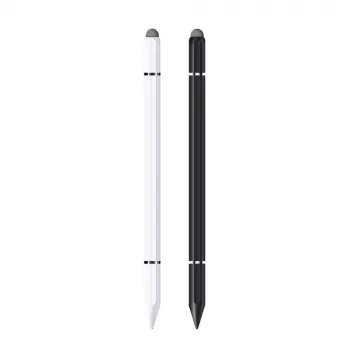
If the goal is simple precision—better taps, cleaner annotations, and easier everyday control—a universal option is an easy upgrade. The Universal Stylus Pen for Apple iPad Pro, Air, Mini, iPhone & Tablets is a low-cost way to improve navigation, quick notes, and light sketching without pairing steps.
Most universal capacitive styluses work on iPad Pro and iPad Air with no Bluetooth pairing because they register as basic touch input. Features like pressure sensitivity or palm rejection generally require a compatible active pen made for the device.
For casual sketching and simple line work, a universal stylus can be enough. For detailed illustration, shading effects, and more natural hand placement, an Apple Pencil-style active pen is usually the better fit due to pressure, tilt, and palm rejection support.
Skipping is often caused by a dirty screen, debris on the tip, a worn nib, certain thick or matte screen protectors, or case edges interfering near the bezel. Cleaning the screen, adjusting the angle, and testing briefly without a case/protector can help isolate the cause.








Leave a comment