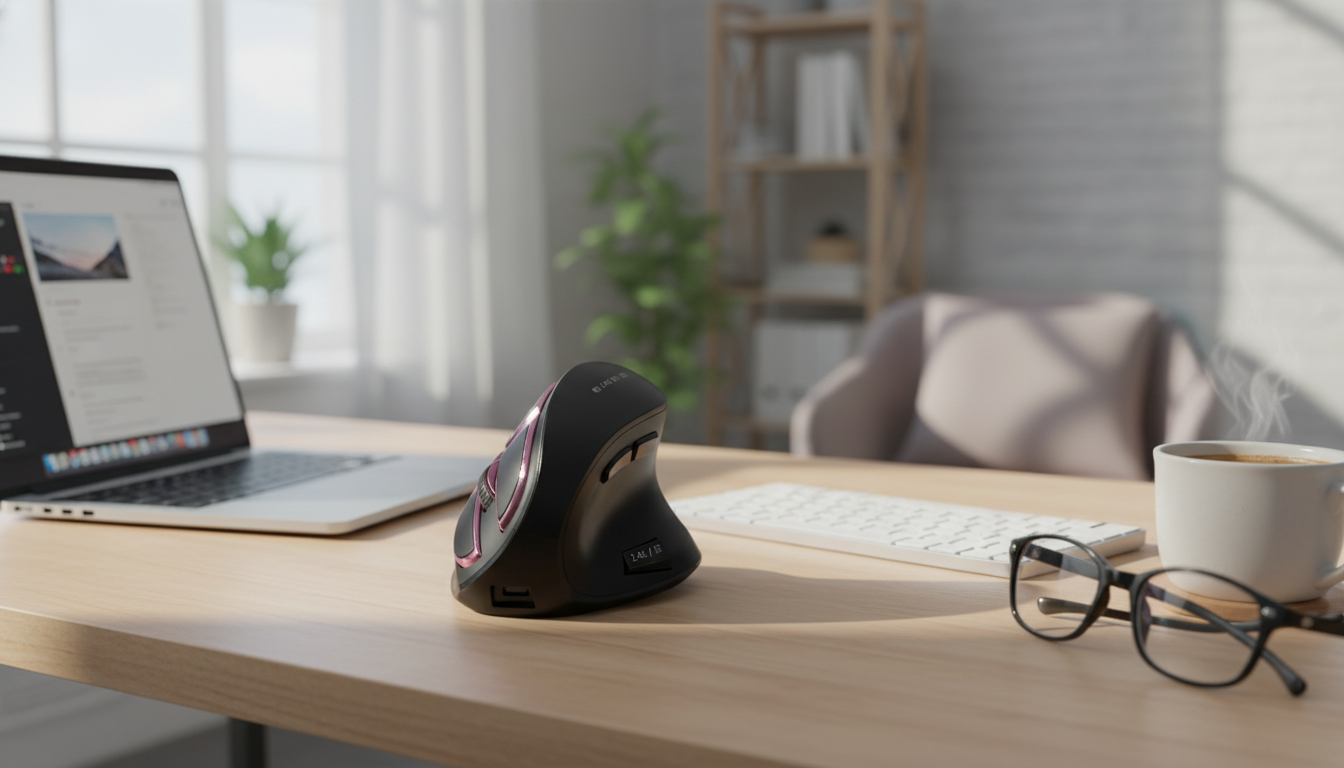
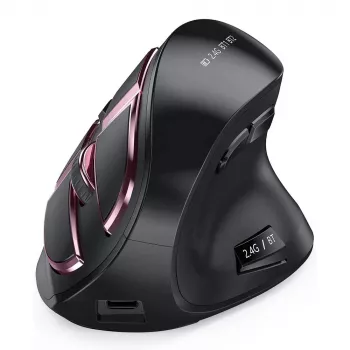
A vertical mouse changes the wrist and forearm angle compared with a traditional flat mouse, aiming for a more natural “handshake” posture during long work sessions. This guide breaks down what to expect from a rechargeable Bluetooth vertical mouse, how it fits into Mac and PC setups, and the practical details that matter day to day—comfort, tracking, battery routine, and switching between devices.
The biggest difference is posture. A vertical design positions the hand closer to neutral, which can reduce forearm pronation compared with a flat mouse. Many people notice it feels less “flicky” at first—especially for precision-heavy tasks like spreadsheets, light design work, or fast-paced navigation—because your muscles are learning a slightly different control pattern.
A vertical mouse also tends to reward a lighter grip. If the mouse is being squeezed or steered with the wrist instead of the arm, comfort gains can disappear quickly. Desk height, chair support, and keyboard placement still matter; for broader workstation tips, OSHA’s guidance on computer workstations is a useful reference: OSHA – Computer Workstations eTool.
A rechargeable Bluetooth vertical mouse is built for uncluttered desks and travel-friendly setups. Bluetooth keeps a USB port free, and a rechargeable battery avoids the recurring cost and hassle of disposable batteries—helpful if you work from multiple locations or keep a lean “grab-and-go” bag.
| What to check | Why it matters | How to confirm |
|---|---|---|
| Bluetooth version and stability | Smooth cursor control and fewer dropouts | Look for Bluetooth pairing support and consistent connection behavior |
| Recharge method (USB charging) | Faster top-ups and fewer battery swaps | Confirm charging port type and included cable if listed |
| Hand size fit | Comfort depends on palm support and button reach | Compare mouse height/width to current mouse; check return policy |
| Operating system compatibility | Ensures basic buttons and tracking work | Confirm macOS and Windows support; note that extra buttons may be limited without software |
| Surface and tracking needs | Prevents jitter on glossy desks | Plan for a mouse pad if tracking is inconsistent |
Bluetooth pairing is an easy win for laptops and compact desktops because it avoids a receiver and keeps a USB port open for storage, audio, or charging. If you regularly bounce between a MacBook and a Windows PC, the smoothest routine is pairing once on each device and then relying on quick reconnection.
On macOS, turn on Bluetooth in System Settings and remove older mouse entries if conflicts occur (for step-by-step help, Apple’s guide is straightforward: Apple Support – Set up Bluetooth accessories). On Windows, check Bluetooth settings, confirm your PC supports Bluetooth, and run updates if the device appears but won’t complete connection.
If frequent switching is part of your daily flow, keep Bluetooth enabled on both devices and avoid pairing the mouse to too many computers at once. That simple habit reduces “which device is it talking to?” moments when you’re trying to get back into focus quickly.
Rechargeable mice are about consistency more than perfection. Instead of waiting for a low-battery surprise, a predictable top-up habit (weekly, or during a lunch break) keeps downtime rare. If you sometimes charge while working, route the cable so it doesn’t drag across the desk and introduce cursor wobble.
Battery life varies with usage intensity, Bluetooth signal strength, and even interference in crowded environments. For travel, a short charging cable and a small pouch can keep your kit tidy and protect the mouse from button presses in a packed bag.
Vertical mice live or die on fit. The most important comfort factors aren’t flashy on a spec sheet, but they show up during hour three of a work session.
If wrist or hand symptoms persist, it’s worth learning the common signs associated with repetitive strain; Mayo Clinic provides a clear overview of carpal tunnel syndrome symptoms and causes: Mayo Clinic – Carpal tunnel syndrome.
In most cases, yes—basic pointing, clicking, and scrolling typically work over Bluetooth on both macOS and Windows. Advanced button customization may depend on what your operating system supports and whether optional software is available.
Many people feel comfortable within several days, but precision and speed can take a couple of weeks to fully normalize. Starting with simple tasks and lowering cursor speed early on usually helps the transition.
It may help by encouraging a more neutral wrist and forearm posture, but it isn’t a medical treatment. Combine it with breaks and workstation adjustments, and consult a professional if symptoms persist or worsen.








Leave a comment