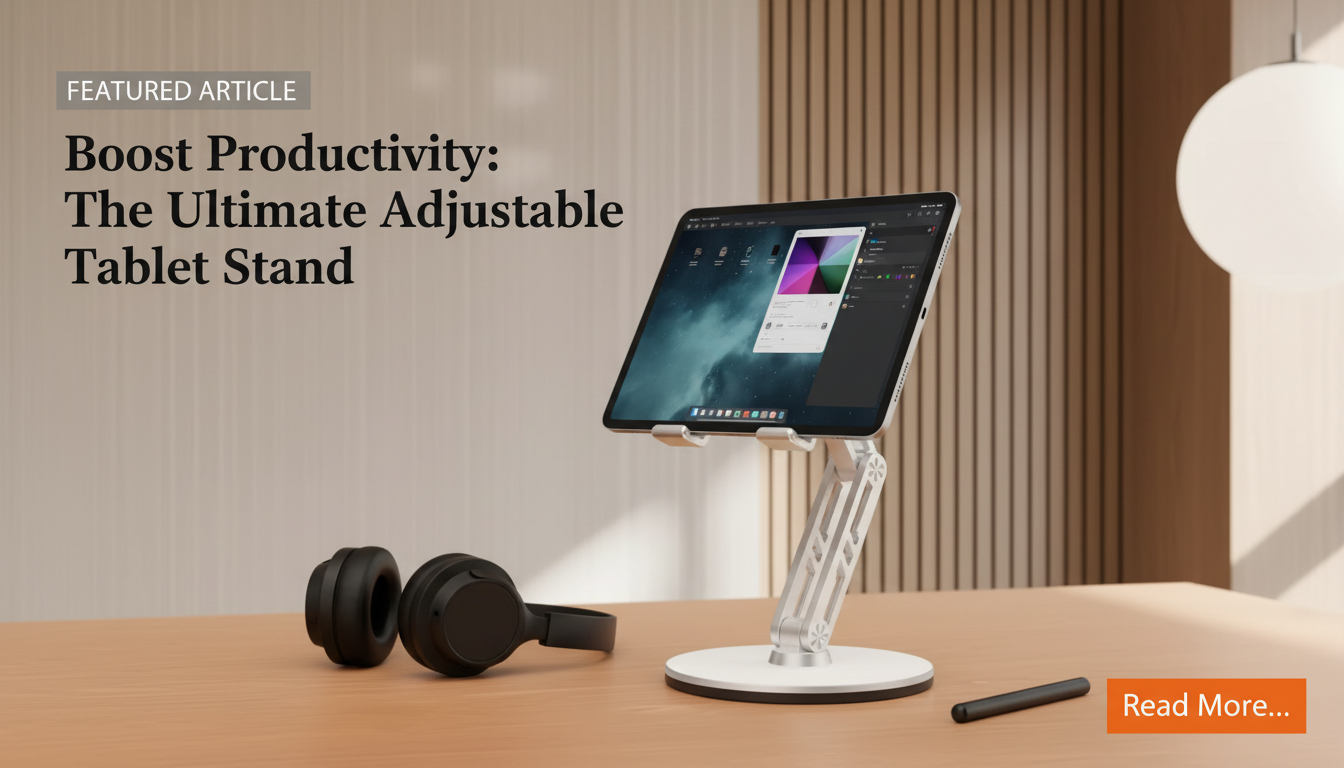
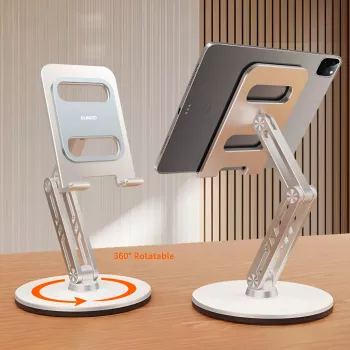
A solid tablet stand can make iPad use more comfortable for work, study, streaming, and calls by lifting the screen to a better height and angle. An adjustable aluminum alloy stand is designed to keep an iPad steady on a desk or countertop while supporting quick angle changes for typing, drawing, reading, or watching—without resorting to makeshift props that slide or wobble.
What This Stand Helps With Day to Day
- Reduces the need to hunch over by raising the iPad closer to eye level on a desk or table.
- Makes frequent angle changes easy when switching between video calls, reading, and typing.
- Improves stability compared with propping an iPad on a mug, stack of books, or soft surface.
- Keeps the iPad visible and accessible for recipes, music sheets, messages, and timers.
- Creates a more consistent setup for remote work, online classes, and content consumption.
For many setups, the biggest difference is consistency: a stand keeps your screen where you put it, so tapping, swiping, and quick glances don’t turn into constant repositioning.
Key Design Features to Look For in an Aluminum Alloy Stand
- Adjustable tilt: useful for glare control, comfortable viewing, and better hand position while typing.
- Rigid hinge or joints: prevents gradual “screen drift” during tapping and swiping.
- Weighted or grippy base: helps prevent sliding on smooth desks and countertops.
- Device contact points: padded areas help avoid scratches and improve grip.
- Foldable profile: easier storage in a bag or drawer when the desk needs to clear quickly.
General workstation guidance also supports keeping screens positioned to reduce awkward neck angles and sustained forward head posture; adjusting height and angle is a practical way to get closer to that goal. For additional ergonomics references, see the OSHA Computer Workstations eTool.
Fit and Compatibility Notes for iPad Setups
- Works best when the stand’s cradle width supports the iPad securely without pressing buttons or ports.
- If an iPad case is used, confirm the stand can accommodate the added thickness.
- Charging while docked is more convenient when there is clearance for the cable connector at the bottom edge.
- Landscape mode is typically best for streaming and calls; portrait mode is useful for reading and scrolling.
- For Apple Pencil users, a stable, low-bounce stand improves control during tapping, annotating, and quick sketches (a dedicated drawing angle may still be preferred for heavy illustration).
If you’re unsure about your model’s dimensions and port placement, Apple maintains a helpful reference list in the iPad Technical Specifications.
Angle and Height Guidance for Comfort
- Set the top of the screen closer to eye level for reading and video calls to reduce neck bending.
- Use a steeper angle for watching content and a slightly lower angle for typing on the iPad screen.
- If using an external keyboard, raise the iPad higher and keep the keyboard at a comfortable elbow height.
- Reduce glare by shifting the iPad angle rather than increasing screen brightness.
- Take short posture breaks during long sessions; a stand helps, but movement still matters.
Common Uses and Suggested Stand Positions
| Use case |
Typical orientation |
Suggested tilt |
Practical tip |
| Video calls |
Landscape |
Medium |
Center the camera at face height to avoid unflattering low angles. |
| Streaming |
Landscape |
Medium to high |
Adjust to minimize reflections from overhead lights. |
| Reading |
Portrait |
Medium |
Increase text size and keep the screen closer to eye level. |
| Typing on-screen |
Landscape |
Low to medium |
Lower the tilt to reduce wrist extension. |
| Recipes / kitchen timer |
Landscape |
Medium to high |
Keep it away from splashes; wipe stand feet to maintain grip. |
Build, Durability, and Desk Safety
- Aluminum alloy construction tends to feel more rigid than lightweight plastic stands and can help reduce wobble.
- Non-slip contact points are important for preventing micro-slips during tapping and scrolling.
- A stable base is especially helpful on smooth surfaces like glass desks or polished counters.
- To protect the desk surface, keep the underside clean from dust or grit that can create scratches.
- If the stand is moved often, check hinge tightness periodically to maintain firm positioning.
A quick habit that helps: once a week (or after travel), wipe the base and pads with a dry microfiber cloth. Tiny particles trapped under the stand are a common source of desk scuffs and “mystery sliding.”
Good Pairings for a Simple Desk Upgrade
Product Snapshot
- Product: Adjustable Aluminum Alloy Tablet Stand for iPad
- Typical use: desk, countertop, and bedside viewing with adjustable tilt for different tasks
- Material focus: aluminum alloy build aimed at stability and durability
- Availability: in stock
More In-Stock Picks to Round Out Your Setup
FAQ
Will an iPad fit on this stand with a case on?
In many setups it can, but case thickness and the bottom edge shape matter. Check whether the stand’s cradle has enough depth and whether the case prevents the iPad from sitting securely; if it feels tight or presses buttons, remove the case or switch to a slimmer one.
Is an aluminum tablet stand stable enough for tapping and scrolling?
Stability depends on hinge strength, base weight, and anti-slip pads. Aluminum alloy stands typically feel more rigid than plastic, and a grippy base helps reduce wobble during touch input.
What angle is best for video calls and long reading sessions?
For video calls, aim for a medium tilt and raise the screen so the camera is near eye level. For reading, keep the screen closer to eye level and adjust tilt to reduce glare, then take short posture breaks during longer sessions.
Recommended for you










Leave a comment