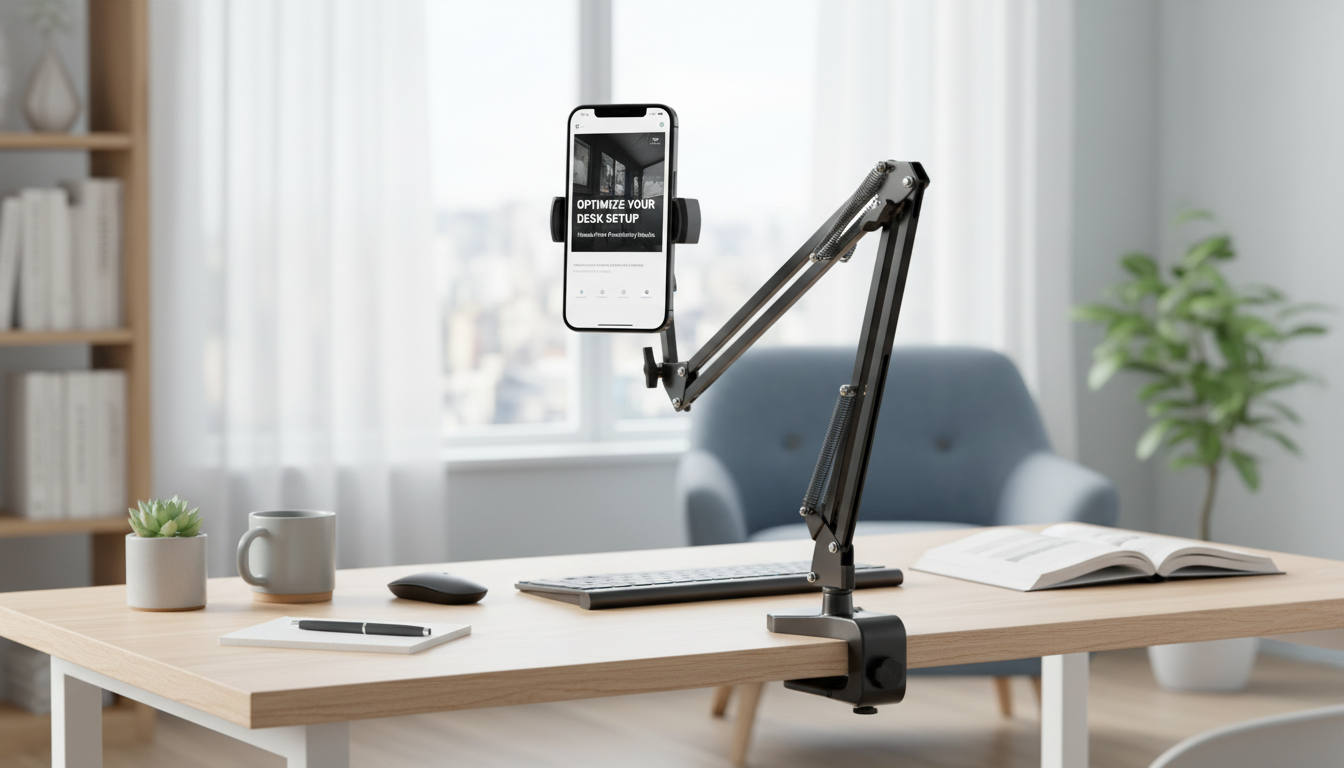
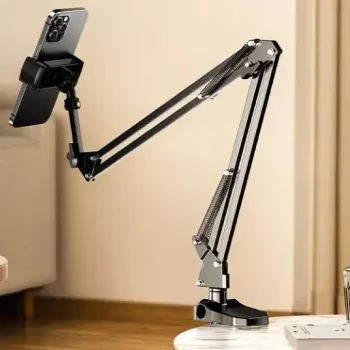
A rotating device stand can make reading, streaming, video calls, and work sessions more comfortable by bringing the screen closer to eye level and keeping your hands free. A well-built 360° rotating tablet and phone holder also makes it easy to flip between portrait and landscape without re-clamping or shifting your setup. Below are the day-to-day benefits to expect, the features that matter most, and practical setup tips for both bed and desk use.
A stable, adjustable holder is one of those small upgrades that quietly improves routines—especially when a phone or tablet is used for long stretches.
Ergonomics guidance often emphasizes keeping screens at a comfortable height and minimizing awkward neck angles; resources like the OSHA Computer Workstations eTool can be helpful when dialing in a workstation-like setup at home.
Not all rotating stands feel the same in real use. The best ones balance smooth motion with firm joints so the device stays where you place it.
| Feature | Why it helps | Best for |
|---|---|---|
| 360° rotation | Switches between portrait/landscape instantly | Calls, streaming, reading |
| Adjustable tilt/angle | Improves ergonomics and reduces glare | Long sessions at desk or bed |
| Stable support | Prevents shaking while tapping the screen | Typing, drawing, gaming |
| Secure device grip | Reduces slips and accidental drops | Bedside use, larger tablets |
| Flexible placement | Works across different surfaces and positions | Dorms, home office, shared spaces |
Bed use is all about comfort and safety: you want a clear view without turning the stand into something you’ll bump at night.
If you notice the screen bouncing when you tap, shorten the “reach” (less extension) and reposition the base closer to where you’re viewing. Small geometry changes often create a big stability improvement.
At a desk, a rotating holder shines as a mini monitor stand: it can lift a phone or tablet for chat, reference docs, or a second screen while keeping the main workspace clear.
General ergonomics guidance from agencies like NIOSH reinforces the value of neutral posture and minimizing strain—principles that apply just as much to tablet and phone setups as they do to traditional computer work.
| Activity | Recommended orientation | Placement tip |
|---|---|---|
| Video calls | Portrait or landscape | Keep camera at eye level; center the device |
| Movies/streaming | Landscape | Angle slightly downward if mounted high |
| Reading | Portrait | Bring closer to eye level to reduce neck bend |
| Recipes/tutorials | Landscape | Place away from splash zone; route charging cable safely |
| Typing/notes | Portrait | Use a lower tilt so the top of the screen isn’t too far back |
Usually yes, as long as the clamp range and weight support match your devices. Check the supported dimensions and make sure the grip won’t press side buttons or block key ports.
Place the base on a firm surface, reduce how far the stand is extended, and tighten any adjustable joints if the design allows. For long typing sessions, using an external keyboard or a lighter touch also helps minimize shake.
It can be safe if the cable is routed with gentle bends, the device has airflow around it to prevent heat buildup, and the stand is positioned where it won’t be knocked over while you shift or fall asleep.









Leave a comment